
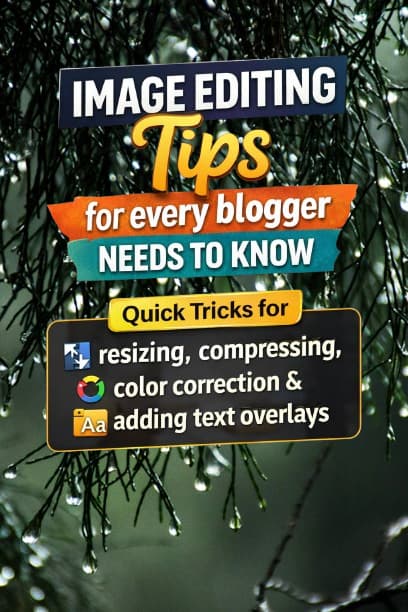
As a blogger, your content is only as good as the visuals that support it. Images can elevate your blog posts, drive more traffic, and keep your readers engaged.
However, without the proper editing, even the best photos or graphics can fall flat. This is where image editing becomes essential. It’s not just about beautifying your content, it’s about ensuring your images perform well for both your audience and search engines.
In this post, we’re going to walk through 10 image editing tips every blogger should know, including tricks for resizing, compressing, color correction, and adding text overlays.
Whether you’re a seasoned blogger or just starting out, these tips will help you optimize your images for maximum engagement, faster load times, and improved SEO.
Why Image Editing Matters for Bloggers
Before diving into the tips, it’s important to understand why image editing is so important for bloggers:
1. Faster Load Times:
Large, unoptimized images slow down your website, negatively impacting the user experience and your SEO rankings.
2. Better Engagement:
High-quality, well-edited images are more visually appealing and encourage readers to stay on your page longer.
3. Improved SEO:
Search engines like Google use images to understand the content of your posts. Properly optimized images with the right size, alt text, and compression can boost your rankings.
Now, let's get into the essential image editing techniques!
- Resizing Images for Web Use
One of the most common mistakes bloggers make is uploading oversized images that are much larger than they need to be. Images that are too large can slow down your website, leading to poor user experience and higher bounce rates.
Why Resizing images Is Important
.Page speed:
Larger images take longer to load. The faster the page loads, the better the experience for your visitors.
.Storage:
Large files take up unnecessary space on your server or CMS (Content Management System).
.SEO:
Google prioritizes websites that load quickly. So, images that are the right size can help boost your rankings.
How to Resize Images
Resize images efficiently:
For blog posts:
Aim for 1200px to 1600px in width.
This will give you a high-quality image that isn’t too large.
For thumbnails:
Thumbnails typically only need to be 300px to 600px wide.
For banners:
Large banner images should be resized to 1920px wide, which is a standard for high-resolution displays.
Tools for Resizing Images:
Canva:
Easy resizing tool with a drag-and-drop interface.
Adobe Photoshop:
Offers advanced resizing options for more precision.
PicResize:
A free, quick tool for resizing multiple images at once.
- Compressing Images for Faster Load Times
When you compress an image, you reduce its file size without sacrificing quality, making it faster to load. This is key for both SEO and user experience.
Why Compressing Is Important
Faster load times:
A smaller file size means quicker loading speeds, improving your website's overall performance.
Reduced bounce rates:
Visitors are more likely to stay on a page that loads quickly. Better user experience: Pages with images that load quickly make for a smoother browsing experience.
- Color Correction to Make Your Images Pop
Color is one of the most powerful ways to capture attention. If your images appear too dark, too bright, or washed out, you may be losing the chance to draw readers in. Proper color correction can elevate your visuals and make them more engaging.
Why Color Correction Matters
Aesthetics:
Proper color correction can help your images look polished and professional.
Mood setting:
Colors evoke emotions, and adjusting the tone of your images can help you set the right mood for your blog post.
Consistency:
Correcting the colors of your images ensures a cohesive look across your website.
How to Correct Colors
Brightness and Contrast:
Adjust brightness and contrast to ensure your images aren’t too dark or too bright.
Saturation:
Increase or decrease the color saturation to make your image feel more vibrant or subdued.
White Balance:
Ensure that your whites appear neutral and that colors don’t look too cool or warm.
Tools for Color Correction:
Adobe Lightroom:
Powerful tool for adjusting exposure, contrast, and saturation in images.
VSCO:
A mobile app that allows for simple and effective color adjustments.
Pixlr:
A free online photo editor with a variety of color correction tools.
- Adding Text Overlays for Clear Messaging
Adding text to your images is an excellent way to deliver your message directly. Whether it's a quote, CTA (call-to-action), or title, text overlays allow you to communicate more clearly and increase engagement.
Why Text Overlays Are Important
Clarification:
Sometimes, a single image can’t fully explain the content. A text overlay can help reinforce your message.
Engagement:
Clear, compelling text can encourage users to click, share, or take action.
Branding:
Adding your blog’s name or logo can increase brand recognition and consistency.
How to Add Text Overlays
Font choice:
Use bold, readable fonts for easy reading across all devices. Make sure the font color contrasts well with the image background.
Text placement:
Position the text strategically where it doesn’t obstruct important elements of the image.
Keep it short and sweet:
Avoid cluttering your images with too much text. Focus on delivering your core message concisely.
Tools for Adding Text Overlays:
Canva:
Simple drag-and-drop tool for adding text overlays to images.
Adobe Spark:
Offers customizable templates and text options for creating stunning visual content.
Fotor:
Free online tool for adding stylish text overlays to images quickly.
- Cropping Images for Better Composition
Cropping is an essential part of image editing that allows you to remove unnecessary areas of an image and focus on the subject matter. This technique can also help you adjust the aspect ratio to suit the needs of your website.
Why Cropping Matters
Focus:
Cropping removes distracting elements from the edges of the image, making the subject the focal point.
Composition:
It allows you to apply rule of thirds and other compositional techniques to make the image more visually appealing.
Consistency:
Proper cropping ensures your images are consistent with your layout, especially when you need to create uniformity in your blog posts.
How to Crop Images
Use the rule of thirds:
Imagine your image divided into nine equal parts. Place important elements along the lines or intersections to create a more balanced composition.
Remove distractions:
Crop out areas that don’t add value or distract from the subject matter.
Tools for Cropping Images:
Photoshop:
Offers advanced cropping tools for precise adjustments.
Canva:
Simple tool for cropping and resizing images with a drag-and-drop interface.
GIMP:
Free alternative to Photoshop that provides powerful cropping features.
- Straightening Your Images for Clean Alignment
Sometimes, a perfectly good photo can appear off-kilter due to a slight tilt. Straightening your images ensures that they appear neat and aligned.
Why Straightening Is Important
Professional appearance:
Crooked or tilted images can look unprofessional.
Improved composition:
Proper alignment helps enhance the balance and symmetry of your visuals.
How to Straighten Images
Align the horizon:
If your image has a horizon line, like a landscape photo, make sure it’s straight and not tilted.
Use gridlines:
Use guides or gridlines available in most editing tools to ensure everything aligns properly.
Tools for Straightening Images:
Adobe Lightroom:
Has a powerful straightening tool that allows you to adjust the angle with precision.
Snapseed:
Mobile app that makes it easy to straighten photos quickly.
Fotor:
Offers an easy-to-use straightening tool for online use.
- Adding Filters to Enhance Visual Appeal
Applying a filter can instantly enhance the aesthetic of your image and give it a consistent look and feel.
Filters are a quick way to adjust brightness, contrast, and saturation in one go
Why Filters Matter
Quick adjustments:
Filters can save time by applying a set of adjustments all at once.
Style consistency:
Filters can create a uniform look across your website, helping to strengthen your branding.
Mood setting:
Filters can evoke a particular mood, bright and cheerful, or dark and moody depending on the style of your blog.
How to Add Filters
Choose a filter that fits your blog’s theme:
Use filters that complement your content.
A travel blog might benefit from bright, vibrant filters, while a food blog may need warmer tones.
Adjust intensity:
Don’t overdo it. Slightly adjusting the intensity of the filter can provide a more natural look.
Tools for Adding Filters:
Instagram:
Simple and quick way to apply filters to your images.
VSCO:
Mobile app known for its wide range of filters and easy customization.
Canva:
Offers a variety of filters you can apply to your images.
- Removing Backgrounds for a Clean Look
Sometimes, an image’s background can distract from the subject. In such cases, removing the background or making it transparent can give your images a cleaner, more professional look.
Why Removing Backgrounds Helps
Focus on the subject:
Remove distractions, making the subject the clear focus.
Versatility:
A transparent background allows you to use the image on various colored backgrounds without clashing.
Professional look:
Clean images with no unnecessary backgrounds give your content a polished, refined appearance.
How to Remove Backgrounds
Use online tools:
There are plenty of free tools that allow you to remove backgrounds with just a few clicks.
Manual editing:
In tools like Photoshop, you can manually cut out the subject and remove the background layer.
Tools for Removing Backgrounds:
Remove.bg:
A free tool to remove background automatically.
Canva Pro:
Offer a one-click background remover feature for paid users.
PhotoScissors:
A simple tool to remove background online.
- Creating Transparent Backgrounds for Logos or Icons
If you're adding a logo or icon to your blog images, you’ll want a transparent background to ensure it blends seamlessly into any background color.
Why Transparent Backgrounds Matter
Versatility:
Transparent backgrounds ensure your logo or icon works with any background color or design.
Professionalism:
They make your graphics look more polished and adaptable.
How to Create Transparent Backgrounds
Use the “Save as PNG” option:
PNG files support transparency, while JPEGs do not.
Use editing tools:
In Photoshop or Canva, you can export your image as a PNG with a transparent background.
Tools for Transparent Backgrounds:
Canva:
Allow you to create logos and icons with transparent background.
Adobe Photoshop:
Powerful tool for working with layers and transparency.
Remove.bg:
Removes backgrounds automatically and provides a transparent PNG download.0
- 10 Adding Borders or Frames for Emphasis
Adding borders or frames to images can give them a more polished look and help them stand out. This is particularly effective when you want to make certain elements pop or create a uniform style across your site.
Why Borders Matter
Visual structure:
Borders give images a defined structure, making them stand out more clearly within your content.
Consistency:
Framing images can provide a uniform style, especially when dealing with images of various sizes.
How to Add Borders
Use soft borders:
Soft, rounded borders work well in modern blog designs.
Add shadow effects:
Drop shadows or subtle borders can help your images pop without feeling too “boxed in.”
Tools for Adding Borders:
Canva:
Easily add borders and effects to images.
PicMonkey:
Offers customizable border designs with a variety of styles and thickness.
Fotor:
A quick and easy online tool for adding borders to images.
Conclusion
Image editing is a crucial skill for any blogger looking to enhance their content and create a more engaging experience for their readers, whether it’s resizing, compressing, color correction or adding text overlays.
These 10 image editing tips will help you make the most out of your visuals.